


inswalk — Casual Minimalist Shoes
DrivePlay Apple CarPlay and Android Auto Car Multimedia Interface
DrivePlay Apple CarPlay and Android Auto Car Multimedia Interface

Couldn't load pickup availability
📌 Feel: Connected, Free, Balanced. Healthy feet are the foundation of a healthy body
 Better posture and eases lower back pain
 Natural toe alignment, relieving knee pressure
 Promotes blood circulation, balance and stability
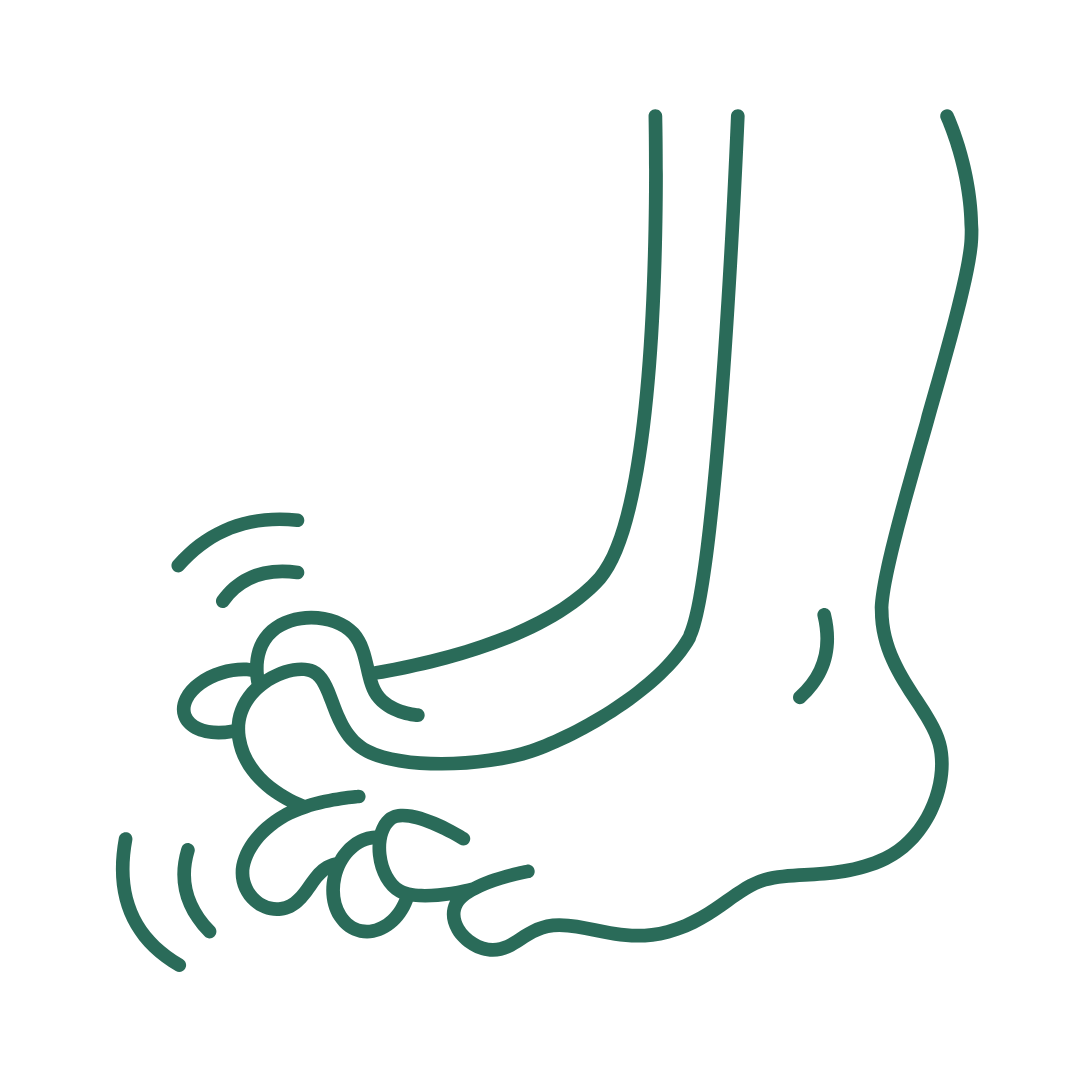 Boosts toe mobility and reduces foot stiffness
 Builds, stabilizes foot muscles and natural gait correct
 Less strain on joints for effortless movement
Save hundreds of euros on installing a CarPlay screen in your old car.
A with DrivePlay, make your car rides more fun and smarter in just a few minutes. Get rid of those expensive and bulky upgrades! Just plug our cool screen into your car's cigarette lighter, and voilà, you have a dashboard as smart as the latest cars. With instant access to navigation, music, and calls, as well as the ability to stream content directly from your phone, every trip becomes a joyride.

Why StreamRide is super convenient for you:
✔️ Easy to install: You don't need any tools, just plug it in and in 5 minutes you're ready to go.
✔️ Movies and music anywhere: watch your favorite shows or listen to cool music while driving. But make sure to be safe, okay?

Is the Apple CarPlay screen easy to install?
Here's how to do it: 1. Place the screen in your car. The CarPlay screen fits perfectly in your car without blocking your view. You can rotate the screen as you like and attach it both to your dashboard and to the windshield using the two provided mounts.

- Specifications:
- Apple CarPlay + Android AutoFM
- + AUX + Bluetooth
- musicDevice
- hands
- freeScreen
- touchPort
- USB
DrivePlay Pro/ DrivePlay Pro+ : 17.5 cm wide and 10.5 cm high DrivePlay Pro 2+ (version 2024) :
- 25 cm wide and 14 cm high
- Features
- special: built-in GPS, MP3 players, voice command (Siri & Google), DSP, rear camera
Carplay and Android Car
Rearcamera: 1080PQuestions
frequently asked questions
It's very simple! It works in any car equipped with a cigarette lighter/car charger.
You plug it in and then you can connect it to your phone via a USB cable from the DrivePlay itself or via Bluetooth.
What improvements have been made to the DrivePlay Pro 2+ (version 2024)?
The DrivePlay Pro 2+ (version 2024) offers several improvements over the previous version.
These include a larger screen, 4K display, a dashcam, and the ability to split the screen for more features.Does it also work with Android phones? Yes, itworks!
It works with all Android phones, so you'll have Android Auto in your car.How do I connect it to my car's speakers? Select a frequency on the DrivePlay, for example: FM 93.6MHz.
(When selecting the transmission frequency, avoid any overlap with the local broadcast frequency to prevent signal interference). On your original car radio, in this example, look for the FM radio frequency 93.6MHz. The sound from the DrivePlay will then be broadcast through your original car speakers. Simple as that!
If you still can't do it, you can always contact our team of specialists.How to connect the rear camera? 1.
Connect two separate wires to the rear light: Locate the two wires coming from the rear light, usually one positive (plus) and one negative (minus).
These are usually one positive (plus) and one negative (minus).
Connect them
then to the camera wires.
2.Mount the
camera
at the back of the car:Choose an appropriate location for the camera, such as the license plate light or another part of the rear bumper that offers good visibility.
Use the provided fasteners to securely attach the camera.
3.C
onnect
the red and yellow plugs to the camera:the red plug is for power and the yellow plug for video signal.
connect these plugs to the corresponding ports of the camera.
4.Route the
wires
from the red and yellow plugs from the back to the frontof the
vehicle:Route the wires from the back to the front of the vehicle, ensuring they are not visible and cannot get caught when moving seats or other parts.
5.Connect to the DrivePlay screen:
Connect the other end of the cables to the DrivePlay screen in your car's dashboard.
How to install the DrivePlay in my car?
Installing the DrivePlay is very simple. Install it on your dashboard, plug it into your car charger, and simply connect your phone with Bluetooth or a USB cable. You then plug this USB cable into the DrivePlay.
So you don't need to have a USB input in your car for that.How can I connect it to my car's speakers? DrivePlay is compatible with Apple CarPlay and Android Auto. You can connect your smartphone via Bluetooth or USB.
Once connected, you can access hands-free navigation, calls, messages, and your favorite apps.
What is the Mirror Link function of DrivePlay?
The Mirror Link function allows you to stream your phone to the screen.
Whether you have an iPhone with iOS AirPlay or an Android phone with AirPlay mirroring, you can stream any content from your phone for your kids to enjoy during long trips.
Does DrivePlay
offeralso
avoice command?
Yes, DrivePlay supports voice command via your smartphone's AI assistant. This allows you to make phone calls, send messages, and listen to music without being distracted.This way, you can stay focused on the road.
Is using a DrivePlay screen
safe?
Yes, using a DrivePlay screen is generally safer than directly using a smartphone while driving. By placing your DrivePlay in the car, it integrates the important functions of your phone, such as navigation, calls, and messaging, into the car's infotainment system, reducing distractions. The screen is designed with large, easy-to-read icons and voice commands, which helps you stay focused on the road.However, as with any form of technology use while driving, it is essential to act reasonably and responsibly and minimize distractions.
Can you watch television on the Apple CarPlay screen?
Yes, it is possible to watch television with Apple CarPlay, but this should only be done while parked.Safety is always paramount while driving, and any activity that diverts the driver's attention from the road, such as loud noise or sudden movement, poses a significant risk. Therefore, watching television should be limited to times when the vehicle is safely stopped to avoid accidents and ensure the safety of everyone on the road.
Q
What applications are available for CarPlay?
All applications on your phone are compatible with our DrivePlay screen, so you don't have to worry about that.
What if I am not satisfied with my DrivePlay purchase?
We support DrivePlay with a 100-day risk-free guarantee. If for any reason you do not have a positive experience, we will do everything we can to ensure you are 100% satisfied with your purchase. If you are not satisfied with your DrivePlay, we will refund the purchase price directly to your account. You can contact us by email at any time of the day if you have questions or need assistance.


